
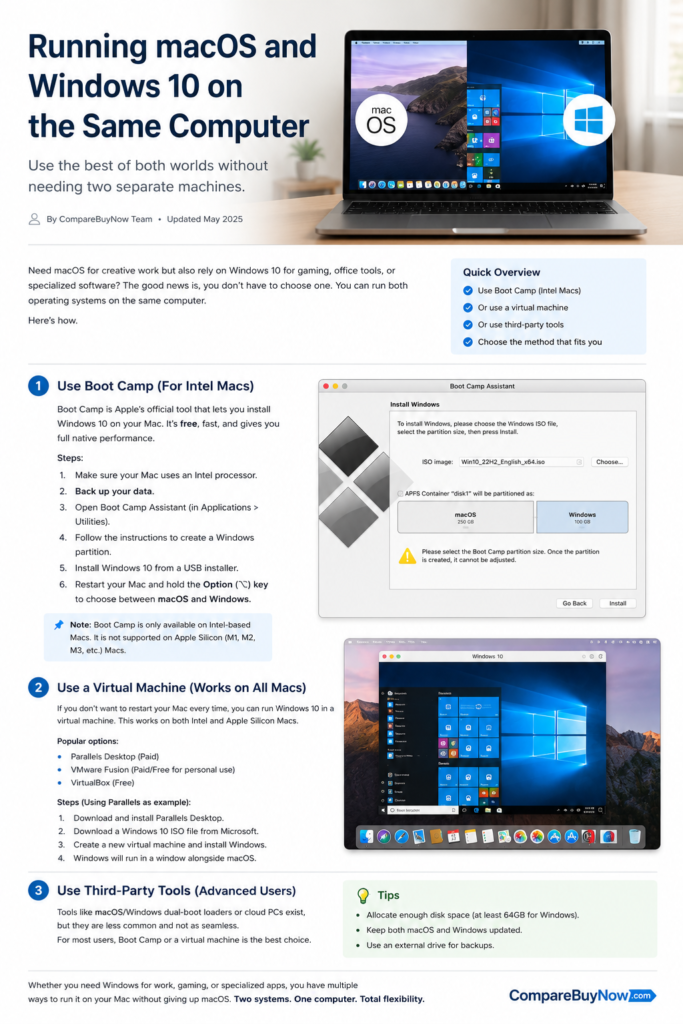
Running macOS and Windows on the same computer gives you the flexibility to use the strengths of both operating systems. Whether you need Windows-only software for work, want to play Windows games, or simply need access to enterprise applications, there are several reliable ways to install and use Windows alongside macOS.
The best method depends on the type of Mac you own and how you plan to use Windows. Intel-based Macs support Apple’s Boot Camp for native Windows installation, while Apple Silicon Macs rely on virtualization software such as Parallels Desktop and VMware Fusion.
This guide explains every available method, the hardware you’ll need, installation steps, troubleshooting tips, and recommendations for different users.
Can You Run macOS and Windows on the Same Computer?
Yes.
There are four popular methods:
- Boot Camp (Intel Macs only)
- Parallels Desktop
- VMware Fusion
- Oracle VirtualBox
Each has its own advantages depending on whether you prioritize performance, convenience, or cost.
Which Macs Support Windows?
Intel Macs
Supported methods:
- Boot Camp
- Parallels Desktop
- VMware Fusion
- VirtualBox
Best choice for gaming and demanding applications.
Apple Silicon Macs (M1, M2, M3 & M4)
Supported methods:
- Parallels Desktop
- VMware Fusion
- VirtualBox (limited)
Boot Camp is not supported on Apple Silicon Macs.
Hardware Requirements
Minimum Requirements
- Intel Core i5 or Apple Silicon processor
- 8GB RAM (16GB recommended)
- 128GB SSD
- 64GB available storage
- Stable internet connection
- Windows 10 ISO
Recommended Requirements
- 16GB or more RAM
- 512GB SSD
- Dedicated graphics (Intel Macs)
- Latest version of macOS
Method 1: Install Windows Using Boot Camp (Intel Macs)
This is the best option if you want native Windows performance.
Step 1: Update macOS
Install all pending macOS updates before beginning.
Step 2: Back Up Your Data
Use Time Machine or another backup solution before partitioning your drive.
Step 3: Download Windows 10 ISO
Download the official Windows 10 ISO directly from Microsoft.
Step 4: Open Boot Camp Assistant
Go to:
Applications → Utilities → Boot Camp Assistant
Step 5: Select the ISO
Choose the downloaded Windows ISO.
Step 6: Allocate Storage
Recommended partition sizes:
| Usage | Recommended Storage |
|---|---|
| Office Work | 80GB |
| Gaming | 120GB+ |
| Development | 150GB+ |
| Video Editing | 200GB+ |
Step 7: Install Windows
Restart your Mac and install Windows on the BOOTCAMP partition.
Step 8: Install Boot Camp Drivers
Once Windows loads, Boot Camp will automatically install Apple’s drivers.
Restart your computer once installation finishes.
Method 2: Run Windows Using Parallels Desktop
Parallels is currently the easiest solution for Apple Silicon Macs.
Installation Steps
- Download Parallels Desktop.
- Install the application.
- Download Windows.
- Create a Virtual Machine.
- Complete the Windows installation.
- Restart the virtual machine.
Advantages:
- No reboot required
- Excellent integration with macOS
- Fast performance
- Shared clipboard and drag-and-drop support
Method 3: VMware Fusion
VMware Fusion is ideal for developers and IT professionals.
Features include:
- Virtual machines
- Snapshots
- Linux support
- Advanced networking
- Windows ARM support
Installation is similar to Parallels:
- Install VMware Fusion
- Create a virtual machine
- Load Windows ISO
- Install VMware Tools
Method 4: VirtualBox
Oracle VirtualBox is free.
Although it doesn’t perform as well as Parallels or VMware, it’s an excellent option for testing software or learning Windows.
Which Method Should You Choose?
| User Type | Recommended Method |
|---|---|
| Gamers | Boot Camp |
| Students | VirtualBox |
| Office Users | Parallels Desktop |
| Developers | VMware Fusion |
| Designers | Parallels Desktop |
| Engineers | Boot Camp |
Performance Tips
To get the best experience:
- Install Windows on an SSD.
- Keep at least 20GB of free storage.
- Allocate enough RAM to your virtual machine.
- Disable unnecessary startup programs.
- Update graphics drivers regularly.
- Install the latest Windows updates.
- Enable hardware virtualization where applicable.
Common Problems and Solutions
Boot Camp Assistant Is Missing
Cause:
- Apple Silicon Mac
- Unsupported macOS version
Solution:
Use Parallels Desktop instead.
Windows Won’t Boot
Possible causes:
- Corrupt ISO
- Driver installation failed
- Incorrect partition
Fix:
- Reinstall Boot Camp drivers.
- Run Windows Startup Repair.
- Verify the partition in Disk Utility.
Wi-Fi Not Working
Solution:
Install or reinstall Boot Camp Support Software.
No Sound
Install Apple’s audio drivers using Boot Camp Support Software.
Trackpad Isn’t Working
Update Boot Camp drivers and restart Windows.
Windows Is Slow
Try the following:
- Increase RAM allocation.
- Allocate more CPU cores.
- Free up storage space.
- Disable unnecessary startup applications.
Virtual Machine Keeps Crashing
Possible fixes:
- Update Parallels or VMware.
- Reduce RAM allocation.
- Install the latest VM tools.
- Restart the Mac.
Advanced Troubleshooting
Windows Update Keeps Failing
Run:
- Windows Update Troubleshooter
- Restart the Windows Update service
- Clear the update cache
Blue Screen Errors
Common causes:
- Faulty drivers
- Memory issues
- Corrupt installation
Boot into Safe Mode and roll back recently installed drivers.
Boot Camp Partition Missing
Open Disk Utility in macOS and verify the partition.
Repair the disk if necessary.
Black Screen After Installation
Reset:
- NVRAM
- SMC (Intel Macs only)
Frequently Asked Questions
Can I use Windows and macOS at the same time?
Yes.
Virtual machines allow both operating systems to run simultaneously.
Does Boot Camp work on M1, M2, M3 or M4 Macs?
No.
Apple discontinued Boot Camp for Apple Silicon Macs.
Is Boot Camp free?
Yes.
Boot Camp Assistant is included with supported Intel Macs.
You’ll only need a valid Windows license.
Will Windows slow down my Mac?
No.
Boot Camp runs Windows natively, while virtual machines may have a small performance overhead depending on your Mac’s hardware.
Final Thoughts
Running macOS and Windows on the same computer is easier than ever. If you own an Intel Mac and need maximum performance, Boot Camp remains the best option. For Apple Silicon Macs, Parallels Desktop provides the smoothest experience with excellent integration and strong performance.
Choose the method that best matches your workflow, keep both operating systems updated, and maintain regular backups to ensure a stable and reliable dual-OS setup.